What is Adobe Photoshop?
Adobe Photoshop is the most commonly used photo editing and graphic design application available worldwide. Photoshop is commonly applied by photographers, graphic designers, digital artists, marketing specialists, and others for the production and manipulation of graphics and visuals.
Photoshop is a raster graphic application, also referred to as pixel-based. This is ideal for any kind of image editing, media, and graphic designing.
If you are not familiar with design concepts at all, please check out our Graphic Design for Beginners resource first.
Adobe Photoshop can be acquired directly from Adobe. You can view the features and packages on the official Photoshop website.
What You Can Do in Photoshop?
Photoshop enables the following functions:
- Edit and touch up photos
- Develop social media posts & thumbnails
- Creating banners, posters, and advertisements
- Remove backgrounds professionally
- Add colors and lighting
- Create digital artwork & mock-ups
- Create images for websites
Introductory Steps for Photoshop
System Requirements (Recommended)
- 8GB or 16GB RAM
- Windows or macOS
- Modern processor
- Enough storage Space
Photoshop is available on Adobe Creative Cloud.
Comprehending the Photoshop Workspace
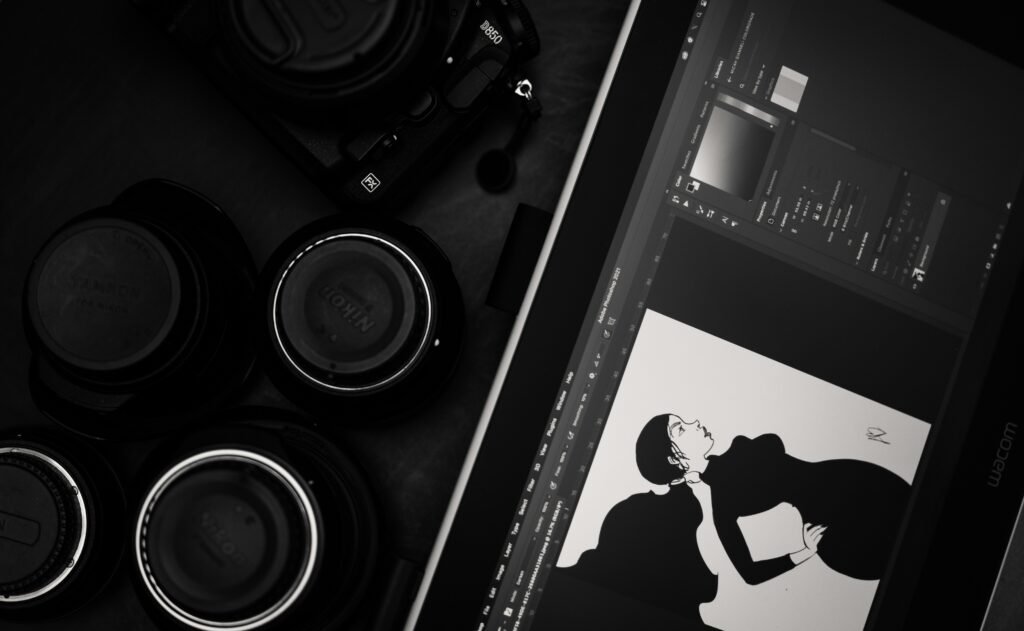
When you start the Photoshop program, you see the following:
Major Topics:
- Menu Bar – File, Edit, Image, Layer, Filter, and more.
- Tools Panel – All editing tools (left side)
- Options Bar – Tool settings (top)
- Layers Panel – Layers are Controlled (right side)
- Canvas – Your working area
Tip: You can reset workspace via
Window → Workspace → Reset Essentials
Crucial Tools for Learning Photoshop for Beginners
Move Tool (V)
Used to move images, text, and shapes.
Crop Tool (C)
Used for image resizing and straightening.
Brush Tool (B)
Used in painting, masking, and retouching.
Eraser Tool (E)
Removes unwanted areas (cautiously applied).
Text Tool (T)
Incorporate Headings, Captions, and Typography.
Selection Tools
- Rectangular Marquee (M)
- Lasso Tool (L)
- Rapid Selection (W)
Understanding Layers (Very Important)
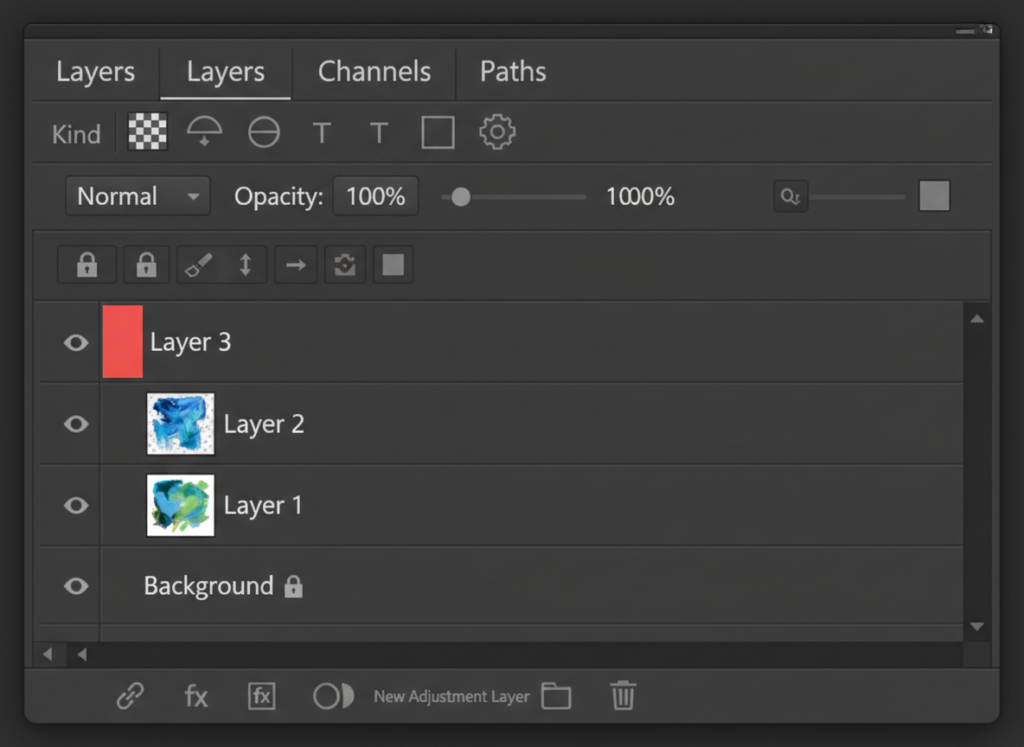
The layers enable non-destructive working.
Imagine layers as transparent layers one on top of another.
Best Practices:
- Make sure to keep the words on separate layers
- Rename layers properly
- Lock finished layers
- Use adjustment layers rather than direct editing
Basic Photo Editing Workflow
Simple professional workflow:
- Open image
- Crop & Straighten
- Adjust Brightness & Contrast
- Correct colors
- Eliminate undesired objects
- Enhance Image
- Export properly
Essential Photoshop Shortcut Keys (Must Learn)
General Shortcuts:
- Ctrl + Z → Undo
- Ctrl + T → Free Transform
- Ctrl + S → Save –> Step backward
- Ctrl + Shift + S → Save for Web
Tools Shortcuts:
- V → Move Tool
- B → Brush Tool
- C → Crop Tool
- T → Text Tool
- E → Eraser Tool
- L → Lasso Tool
Professionals make extensive use of shortcuts in order to work efficiently.
Working with Text & Typography
Photoshop will enable you to produce:
- Social media post
- Poster Titles
- Thumbnails text
Tips:
- Employ readable fonts.
- Preserve spaces
- Do not use many fonts in a single composition.
Fonts download resources: https://fonts.google.com
Exporting Images Properly
For Web:
- File → Export → Save for Web
- Formatting: JPG or PNG
- Quality: 70-80%
For Print:
- Format: JPG / TIFF
- Color model: CMYK
- High resolution
Photoshop Versus Illustrator (Quick Tip)
- Photoshop → Photo editing & raster graphics
- Illustrator → Logos, icons & Vector graphics
Find out more about vector graphics here:
Free Resources to Practice Photoshop:
- Free stock photos can be found at https://www.pexels.com/
- Photoshop Tutorials: https://helpx.adobe.com/photoshop/tutorials.html
- Source of design inspiration: https://www.behance.net/
For practicing, high-quality and royalty-free photos can be obtained from Pexels.
Final Tips for Beginners and Professionals
- Practice every day with real images
- Learn shortcuts early
- Use layers correctly
- Don’t be in a hurry for advanced
- Consistency beats speed
Photoshop proficiency takes time, practice, and good imagination.